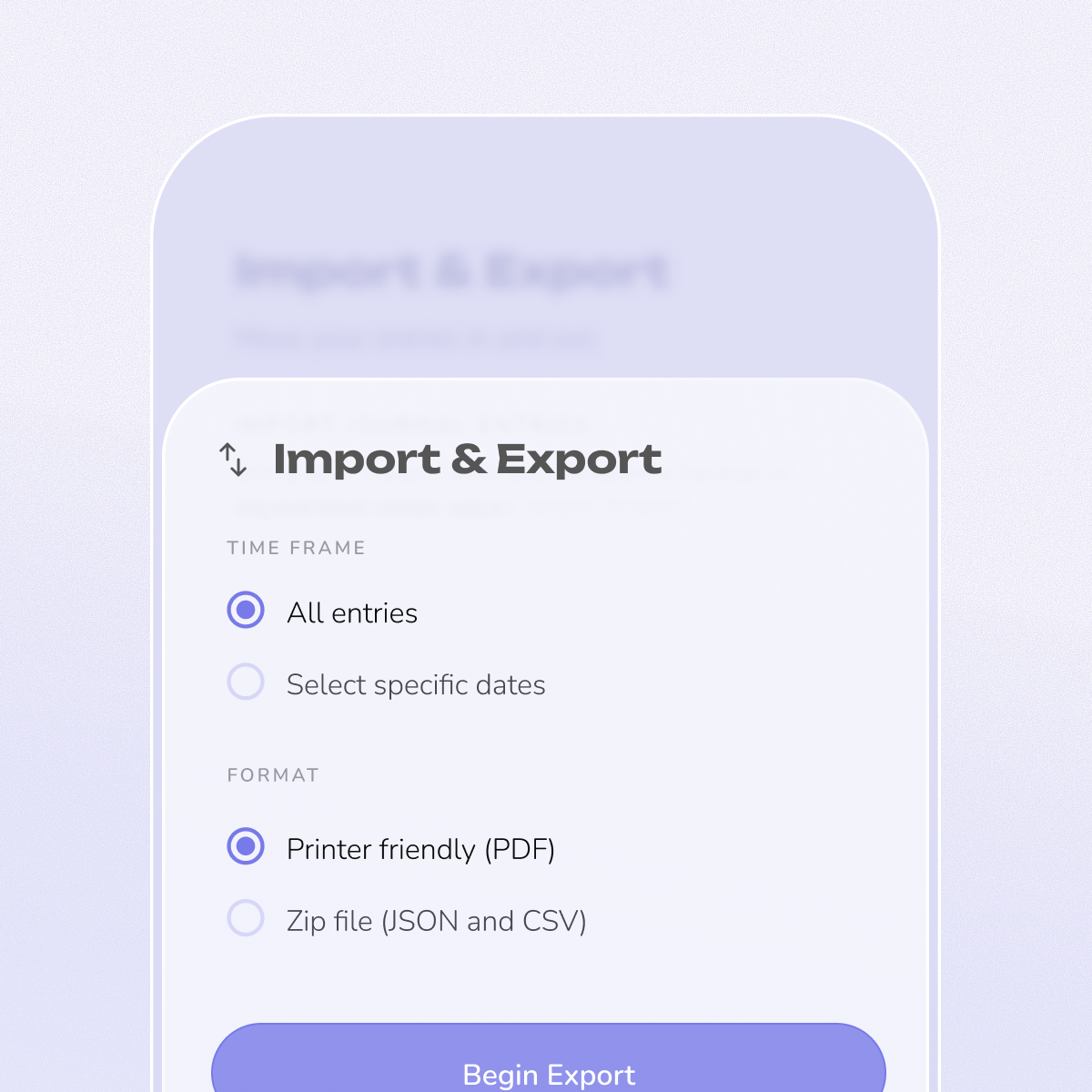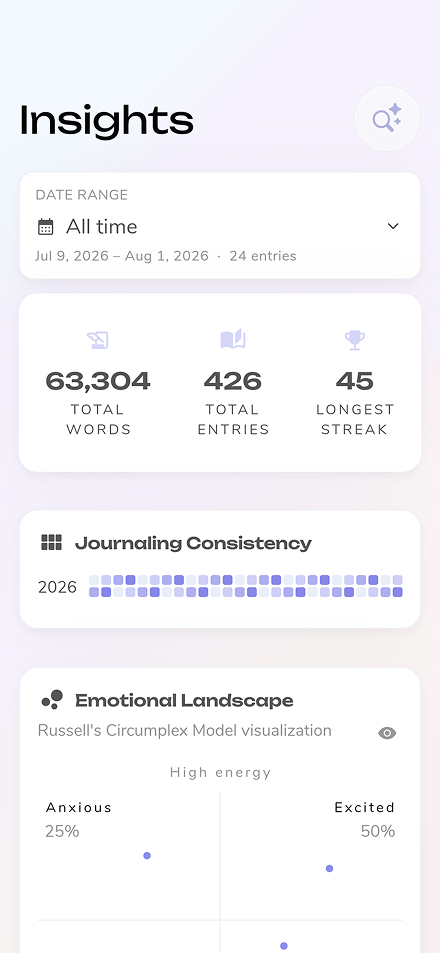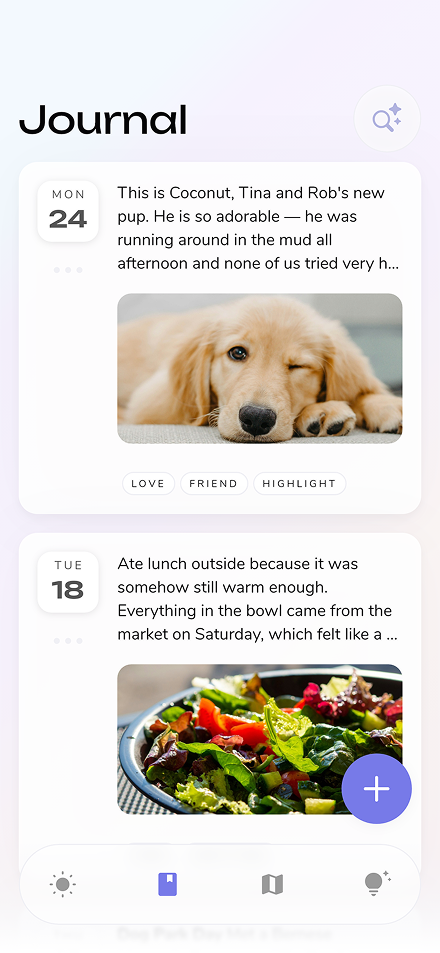


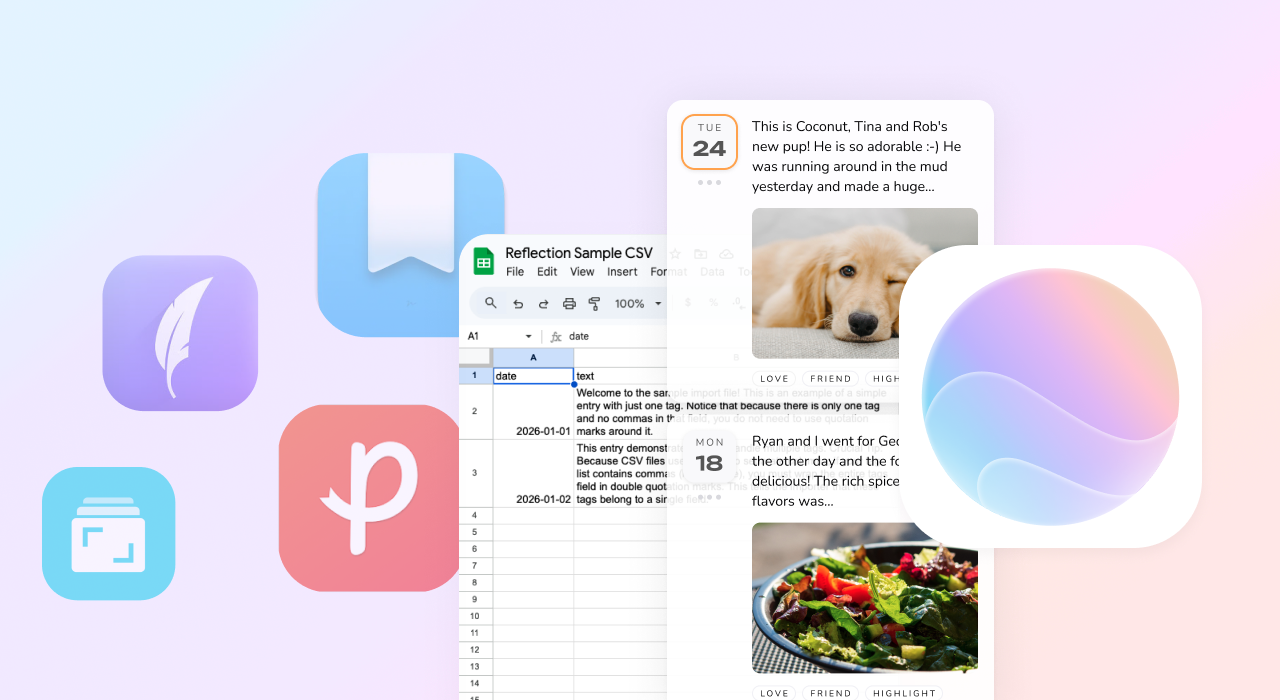
You've been journaling for months—maybe years. Your entries hold memories, breakthroughs, and moments you don't want to lose. Now you're ready to bring all of that history into Reflection.
Good news: with our new CSV import feature, you can migrate your journal from almost any app. Whether you're coming from Day One, Journey, Diarium, Penzu, or another journaling tool, we've got you covered.
This guide walks you through the process step by step.
Moving your journal to Reflection happens in three steps:
Don't worry if that sounds technical—we've created free tools to make the conversion simple, even if you've never worked with a CSV file before.
First, you'll need to get your entries out of your current journaling app. Most apps let you export your data as a file (usually JSON, CSV, or a ZIP archive).
Here's where to look in popular apps:
Save the exported file somewhere you can easily find it, like your Downloads folder or Desktop.
Your exported file needs to be converted into a CSV file that Reflection can read. We've built free tools to help with this—you can choose the approach that feels most comfortable.
If you use ChatGPT or Claude, we've created ready-made prompts that guide the AI through converting your journal export into Reflection's format.
How it works:
prompts/chatgpt-journal-converter.md for ChatGPTprompts/claude-day-one-migration.md for ClaudeTip: For large journals, convert in smaller batches (50-100 entries at a time) so you can check the results before importing everything.
If you're migrating from Day One and prefer to keep your data completely local (never sent to any AI service), we have a Python script that runs on your computer.
You'll find it in our GitHub repository under dayone/scripts/. The Day One README has full instructions.
This option requires some comfort with running scripts on your computer, but it's the most private approach.
If your app exports to CSV and you're comfortable with spreadsheets, you can manually map your columns to match Reflection's format.
Download our Sample CSV to use as a template.
Our CSV format guide explains exactly what Reflection expects.
Once you have your Reflection-formatted CSV file, importing is easy.
We recommend doing this on desktop (our web app at web.reflection.app or our Mac app) since you'll be working with files.
Already have entries in Reflection? If you've been journaling in Reflection and want to import a large archive from another app, consider creating a temporary Reflection account to test the import first. This lets you verify everything looks right before importing to your main account. Once you're confident the conversion worked, you can import to your primary account with peace of mind.
[Screenshot placeholder: Settings menu showing Import option]
[Screenshot placeholder: Import preview screen]
Your entries will appear in Reflection with their original dates, so your journal history stays intact.
We know your journal is deeply personal. A few things to keep in mind:
Every journal export is a little different, and we know this process can feel daunting when your memories are on the line.
If you run into trouble or have questions, reach out to us at help@reflection.app—we're happy to help you get your journal home.
Any journaling app that allows you to export as a CSV, XLS, or JSON—you can migrate from it. This includes services like Day One, Journey, Penzu, Evernote, Notion, Daylio, Grid Diary, Google Keep, and most other journals.
Yes! You can review the import file before finalizing the process. Once imported, all entries will share the same tags, making them easy to locate and review. If you're importing a large journal file and are concerned about issues or duplicates, consider creating a new Reflection account to test the import first. Currently, entries can only be deleted one by one, so bulk actions aren't yet available. A test run in a new account is a good way to ensure everything meets your expectations.
Formatting is preserved during migration, but photo and video imports are not yet supported. Each journaling tool stores media differently, making migration challenging. We're actively exploring solutions, so if this feature interests you, let us know and we'll add you to our feature request list.
Nope! Importing entries is a free service that we make available to all users. Enjoy!
Not yet, but we're actively working on it. Currently, the import brings in your text and formatting, but photos and videos aren't supported. Each journaling app stores media differently, which makes this a complex problem to solve well. If image import is important to you, reach out at help@reflection.app—we'd love to hear from you and keep you updated on our progress.
Yes! Your entries will appear in Reflection with their original dates intact, so your journal history stays in the right order. You won't lose the timeline of your memories.
It depends on the size of your journal, but typically it takes a few minutes. You'll see a loading indicator showing progress, and you don't need to stay on the page while it works—feel free to step away and come back.
Yes! As of iOS 18, Apple Journal supports exporting your entries. Go to Settings → Apps → Journal → Export All Journal Entries. This creates a ZIP file containing separate HTML files for each entry, plus a folder with your photos and media.
Since the export contains individual files rather than one consolidated file, you'll need to use ChatGPT or Claude to combine them into Reflection's CSV format. Upload the HTML files (in batches if needed) and ask the AI to extract the entry text and dates into our CSV format. Our existing prompts can be adapted for this—just let the AI know you're working with Apple Journal HTML files.
After the import completes, Reflection will show you how many entries were successfully imported. If some entries didn't come through as expected, double-check your CSV formatting against our format guide, or reach out to us at help@reflection.app and we'll help you troubleshoot.
Absolutely. Reflection uses AES-256 encryption for your entries at rest and TLS 1.2+ encryption in transit. Your journal data is stored securely with Google Cloud, which is ISO/IEC 27001, SOC 1, SOC 2 certified, and GDPR compliant. If you use the Python converter instead of AI tools, your data never leaves your computer during conversion.
Switching journaling apps?
See how Reflection compares to Day One, Journey, Penzu, and more in our comparison hub.
You've been journaling for months—maybe years. Your entries hold memories, breakthroughs, and moments you don't want to lose. Now you're ready to bring all of that history into Reflection.
Good news: with our new CSV import feature, you can migrate your journal from almost any app. Whether you're coming from Day One, Journey, Diarium, Penzu, or another journaling tool, we've got you covered.
This guide walks you through the process step by step.
Moving your journal to Reflection happens in three steps:
Don't worry if that sounds technical—we've created free tools to make the conversion simple, even if you've never worked with a CSV file before.
First, you'll need to get your entries out of your current journaling app. Most apps let you export your data as a file (usually JSON, CSV, or a ZIP archive).
Here's where to look in popular apps:
Save the exported file somewhere you can easily find it, like your Downloads folder or Desktop.
Your exported file needs to be converted into a CSV file that Reflection can read. We've built free tools to help with this—you can choose the approach that feels most comfortable.
If you use ChatGPT or Claude, we've created ready-made prompts that guide the AI through converting your journal export into Reflection's format.
How it works:
prompts/chatgpt-journal-converter.md for ChatGPTprompts/claude-day-one-migration.md for ClaudeTip: For large journals, convert in smaller batches (50-100 entries at a time) so you can check the results before importing everything.
If you're migrating from Day One and prefer to keep your data completely local (never sent to any AI service), we have a Python script that runs on your computer.
You'll find it in our GitHub repository under dayone/scripts/. The Day One README has full instructions.
This option requires some comfort with running scripts on your computer, but it's the most private approach.
If your app exports to CSV and you're comfortable with spreadsheets, you can manually map your columns to match Reflection's format.
Download our Sample CSV to use as a template.
Our CSV format guide explains exactly what Reflection expects.
Once you have your Reflection-formatted CSV file, importing is easy.
We recommend doing this on desktop (our web app at web.reflection.app or our Mac app) since you'll be working with files.
Already have entries in Reflection? If you've been journaling in Reflection and want to import a large archive from another app, consider creating a temporary Reflection account to test the import first. This lets you verify everything looks right before importing to your main account. Once you're confident the conversion worked, you can import to your primary account with peace of mind.
[Screenshot placeholder: Settings menu showing Import option]
[Screenshot placeholder: Import preview screen]
Your entries will appear in Reflection with their original dates, so your journal history stays intact.
We know your journal is deeply personal. A few things to keep in mind:
Every journal export is a little different, and we know this process can feel daunting when your memories are on the line.
If you run into trouble or have questions, reach out to us at help@reflection.app—we're happy to help you get your journal home.
Any journaling app that allows you to export as a CSV, XLS, or JSON—you can migrate from it. This includes services like Day One, Journey, Penzu, Evernote, Notion, Daylio, Grid Diary, Google Keep, and most other journals.
Yes! You can review the import file before finalizing the process. Once imported, all entries will share the same tags, making them easy to locate and review. If you're importing a large journal file and are concerned about issues or duplicates, consider creating a new Reflection account to test the import first. Currently, entries can only be deleted one by one, so bulk actions aren't yet available. A test run in a new account is a good way to ensure everything meets your expectations.
Formatting is preserved during migration, but photo and video imports are not yet supported. Each journaling tool stores media differently, making migration challenging. We're actively exploring solutions, so if this feature interests you, let us know and we'll add you to our feature request list.
Nope! Importing entries is a free service that we make available to all users. Enjoy!
Not yet, but we're actively working on it. Currently, the import brings in your text and formatting, but photos and videos aren't supported. Each journaling app stores media differently, which makes this a complex problem to solve well. If image import is important to you, reach out at help@reflection.app—we'd love to hear from you and keep you updated on our progress.
Yes! Your entries will appear in Reflection with their original dates intact, so your journal history stays in the right order. You won't lose the timeline of your memories.
It depends on the size of your journal, but typically it takes a few minutes. You'll see a loading indicator showing progress, and you don't need to stay on the page while it works—feel free to step away and come back.
Yes! As of iOS 18, Apple Journal supports exporting your entries. Go to Settings → Apps → Journal → Export All Journal Entries. This creates a ZIP file containing separate HTML files for each entry, plus a folder with your photos and media.
Since the export contains individual files rather than one consolidated file, you'll need to use ChatGPT or Claude to combine them into Reflection's CSV format. Upload the HTML files (in batches if needed) and ask the AI to extract the entry text and dates into our CSV format. Our existing prompts can be adapted for this—just let the AI know you're working with Apple Journal HTML files.
After the import completes, Reflection will show you how many entries were successfully imported. If some entries didn't come through as expected, double-check your CSV formatting against our format guide, or reach out to us at help@reflection.app and we'll help you troubleshoot.
Absolutely. Reflection uses AES-256 encryption for your entries at rest and TLS 1.2+ encryption in transit. Your journal data is stored securely with Google Cloud, which is ISO/IEC 27001, SOC 1, SOC 2 certified, and GDPR compliant. If you use the Python converter instead of AI tools, your data never leaves your computer during conversion.
Switching journaling apps?
See how Reflection compares to Day One, Journey, Penzu, and more in our comparison hub.